
Automatically score tenders before you decide to bid
When your team completes a tender assessment, Build Concierge totals the scores, applies the threshold you've agreed and saves a Bid or No Bid recommendation to the tender record. Your team still scores the tender and still makes the decision. The automation makes sure every assessment is added up and measured against the same bar.


The problem: the same tender, judged two ways
Two tenders arrive in the same week. One estimator rates the first highly because the client is familiar; another marks the second down over contract terms. The scores are added up differently, if at all, and the cut-off for bidding lives in someone's head.
A month later, it's hard to explain why one was pursued and the other wasn't, and time has gone into a bid that never fitted the business.
How it works
The scores come from your team. Build Concierge does not read or assess the tender documents.
- Your team scores the tender. Someone completes the assessment form on the tender record in your job management system, scoring each of your criteria within the ranges you've set.
- The total is calculated. When the assessment is completed, Build Concierge adds up the scores and works out the result as a percentage.
- Your threshold is applied. The result is compared with the threshold you've agreed, giving a Bid or No Bid recommendation.
- The result is saved. The score and recommendation are written back to the tender record, next to your team's assessment, ready for the bid decision.
Illustrative example
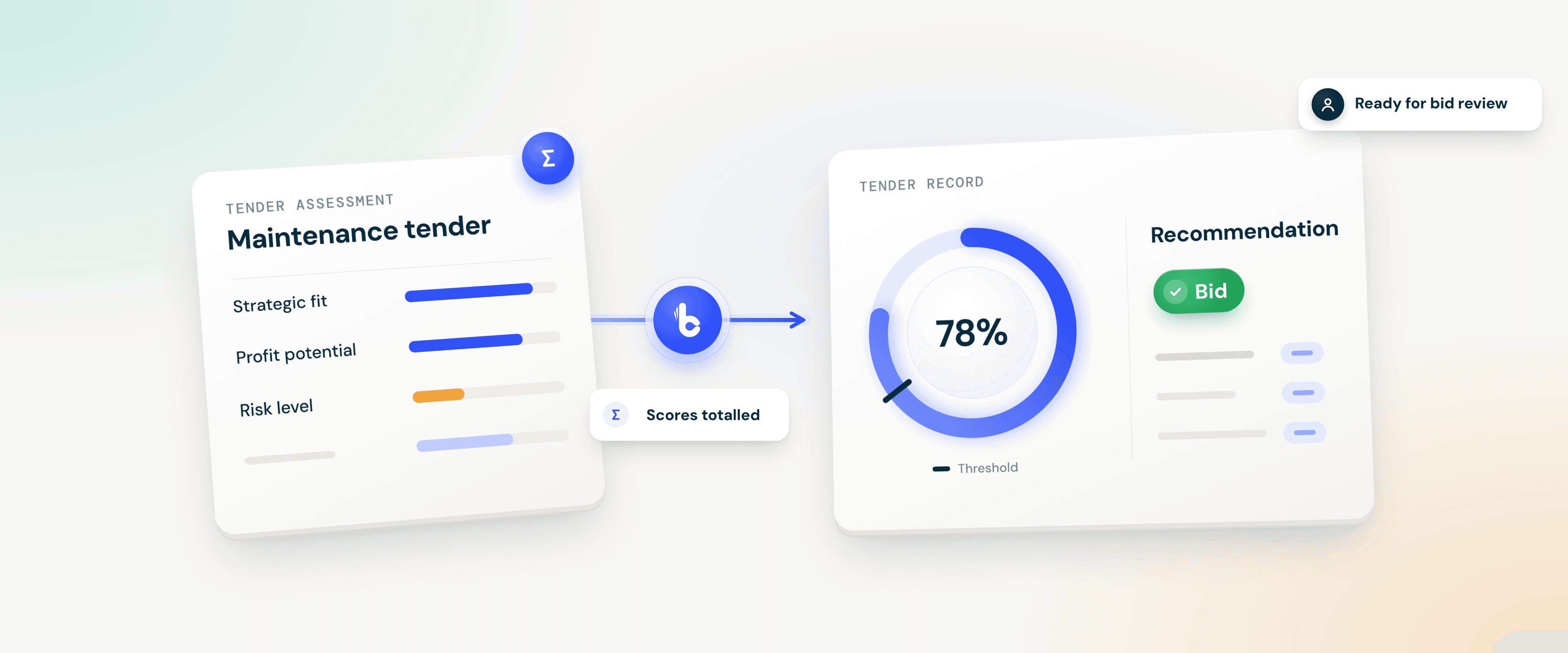
Your bid manager completes the assessment for a new maintenance tender. Strategic fit and profit potential score well, and risk scores lower. Build Concierge totals the scores, the result clears your threshold, and the tender record shows a Bid recommendation. At the bid review, the team talks through the risk score and decides to go ahead.
Your criteria, your threshold, your decision
You choose the criteria. Score what matters to your business, such as strategic fit, technical capability, resource availability, delivery capacity, profit potential, contract terms, risk level and relevant experience. You also set the score range for each.
You set the threshold. You decide the result a tender needs for a Bid recommendation. Your Concierge Support team can update your criteria and threshold as your priorities change.
Your team makes the call. The result is a recommendation, not a decision, and nothing is submitted on your behalf.
Consistent maths, not objective judgement. The calculation is the same every time, but each score is still someone's assessment. Agreeing what each score means across your team makes the results easier to compare.
Getting set up
You'll need an assessment form on your tender records with a score for each criterion, a job management system that can notify Build Concierge when an assessment is completed, and API access so the result can be written back.
- Agree your criteria and score ranges. Your Concierge Support team helps you shape the assessment.
- Set your threshold. Decide what a tender needs to reach for a Bid recommendation.
- Connect your job management system. Your details are stored securely in Build Concierge.
- Test, then go live. We complete a test assessment, check the result on the tender record, then switch it on.
Worth knowing
It's the point where you decide whether a tender is worth the time and cost of a full submission, usually by weighing fit, capacity, margin and risk.
A practical starting point is to score a few recent tenders you won and lost, then set the threshold where the good fits sit. Your Concierge Support team can adjust it as you learn.
Yes. Your team's individual scores stay on the tender record alongside the result, so anyone reviewing the tender can see where it came from.
If you already use Build Concierge, ask your Concierge Support team about setting up tender scoring.
More from the knowledge centre
Answer out-of-hours calls & alert the on-call engineer automatically
When an emergency call comes in overnight, Concierge Receptionist answers it, captures the details and raises the job. The on-call engineer is then called, texted or both, with everything they need to set off.

Automatically keep company records up to date in your systems
Build Concierge uses your Handshaik account to fill in missing company details for customers and prospects, including registered addresses and company numbers. It can also add figures from their latest filed accounts. Your team has the information to hand in your existing systems, without having to look it up manually.

Turn SOR codes on job cards into priced invoice lines automatically
Your engineers record the schedule of rates (SOR) codes they used. Build Concierge adds each one to the job as a priced line from your own price list and raises the invoice, ready for your team.

Check every job card against its charges before invoicing
Build Concierge reads each completed job card, compares the materials used with the job's charges, and flags any gaps before the invoice goes out.

Catch certificate errors while the visit is still fresh
When an engineer submits a completed job card, Build Concierge checks the certificate details against the rules you've agreed for that type of work. It records the findings on the job and tells your team what needs a closer look.

Get alerts when purchase order lines change on invoiced jobs
When someone updates a purchase order (PO) line, Build Concierge checks whether the job it belongs to has already been invoiced. If it has, the people you choose receive an alert showing what changed, who changed it and links to the job and the PO. Your team can review the change while it's recent, rather than coming across it at month-end.

Answer out-of-hours calls & alert the on-call engineer automatically
When an emergency call comes in overnight, Concierge Receptionist answers it, captures the details and raises the job. The on-call engineer is then called, texted or both, with everything they need to set off.
Automatically keep company records up to date in your systems
Build Concierge uses your Handshaik account to fill in missing company details for customers and prospects, including registered addresses and company numbers. It can also add figures from their latest filed accounts. Your team has the information to hand in your existing systems, without having to look it up manually.
Turn SOR codes on job cards into priced invoice lines automatically
Your engineers record the schedule of rates (SOR) codes they used. Build Concierge adds each one to the job as a priced line from your own price list and raises the invoice, ready for your team.
Check every job card against its charges before invoicing
Build Concierge reads each completed job card, compares the materials used with the job's charges, and flags any gaps before the invoice goes out.
Catch certificate errors while the visit is still fresh
When an engineer submits a completed job card, Build Concierge checks the certificate details against the rules you've agreed for that type of work. It records the findings on the job and tells your team what needs a closer look.
Get alerts when purchase order lines change on invoiced jobs
When someone updates a purchase order (PO) line, Build Concierge checks whether the job it belongs to has already been invoiced. If it has, the people you choose receive an alert showing what changed, who changed it and links to the job and the PO. Your team can review the change while it's recent, rather than coming across it at month-end.
Answer out-of-hours calls & alert the on-call engineer automatically
When an emergency call comes in overnight, Concierge Receptionist answers it, captures the details and raises the job. The on-call engineer is then called, texted or both, with everything they need to set off.
Automatically keep company records up to date in your systems
Build Concierge uses your Handshaik account to fill in missing company details for customers and prospects, including registered addresses and company numbers. It can also add figures from their latest filed accounts. Your team has the information to hand in your existing systems, without having to look it up manually.
Turn SOR codes on job cards into priced invoice lines automatically
Your engineers record the schedule of rates (SOR) codes they used. Build Concierge adds each one to the job as a priced line from your own price list and raises the invoice, ready for your team.
Check every job card against its charges before invoicing
Build Concierge reads each completed job card, compares the materials used with the job's charges, and flags any gaps before the invoice goes out.
Catch certificate errors while the visit is still fresh
When an engineer submits a completed job card, Build Concierge checks the certificate details against the rules you've agreed for that type of work. It records the findings on the job and tells your team what needs a closer look.
Get alerts when purchase order lines change on invoiced jobs
When someone updates a purchase order (PO) line, Build Concierge checks whether the job it belongs to has already been invoiced. If it has, the people you choose receive an alert showing what changed, who changed it and links to the job and the PO. Your team can review the change while it's recent, rather than coming across it at month-end.