
Turn emailed hire requests into hire contracts automatically
When a customer emails your hire desk, Build Concierge reads the request and any attachments. It then matches the customer, delivery site and equipment, and creates a hire contract in your hire management system. Your hire desk checks and confirms the contract instead of keying it in from scratch. Requests it can't match with confidence come to your team instead.


The problem: orders arrive in every shape
Monday morning, and the hire desk inbox is full. One request is a line in an email, another is a PDF purchase order, a third is a screenshot of a product page forwarded from site. Each one has to be read, the customer and site found, every item matched to a category and the whole order keyed in.
While that happens, customers wait for confirmation. When one chases, it's easy to raise the same order twice.
How it works
- Read the request. AI reads the email and supported attachments, including text in images and screenshots. It picks out the items, quantities, hire dates, order number and delivery details. If the email has been forwarded, it works from the original customer's request, and relative dates such as "next Monday" are calculated from when that request was sent.
- Match the customer and site. The sender is matched to a customer account and contact using their email address, or an account number quoted in the request. The delivery address is matched to one of that customer's sites, by postcode or by site name.
- Match the equipment. Each item is matched to one of your equipment categories, using stock codes where the customer has supplied them. A final check looks for any line that could send the wrong equipment to site.
- Check for a duplicate. The order number is checked against that customer's unconfirmed contracts. If one already carries the same order number, no new contract is created.
- Create the contract for your hire desk to confirm. The contract is created with the hire dates, order number and delivery details. Your team receives an email with the contract number and a summary of what was matched, including anything worth a second look.
The automation never confirms a hire. Confirmation, including availability, pricing and delivery arrangements, stays with your hire desk.
Illustrative example
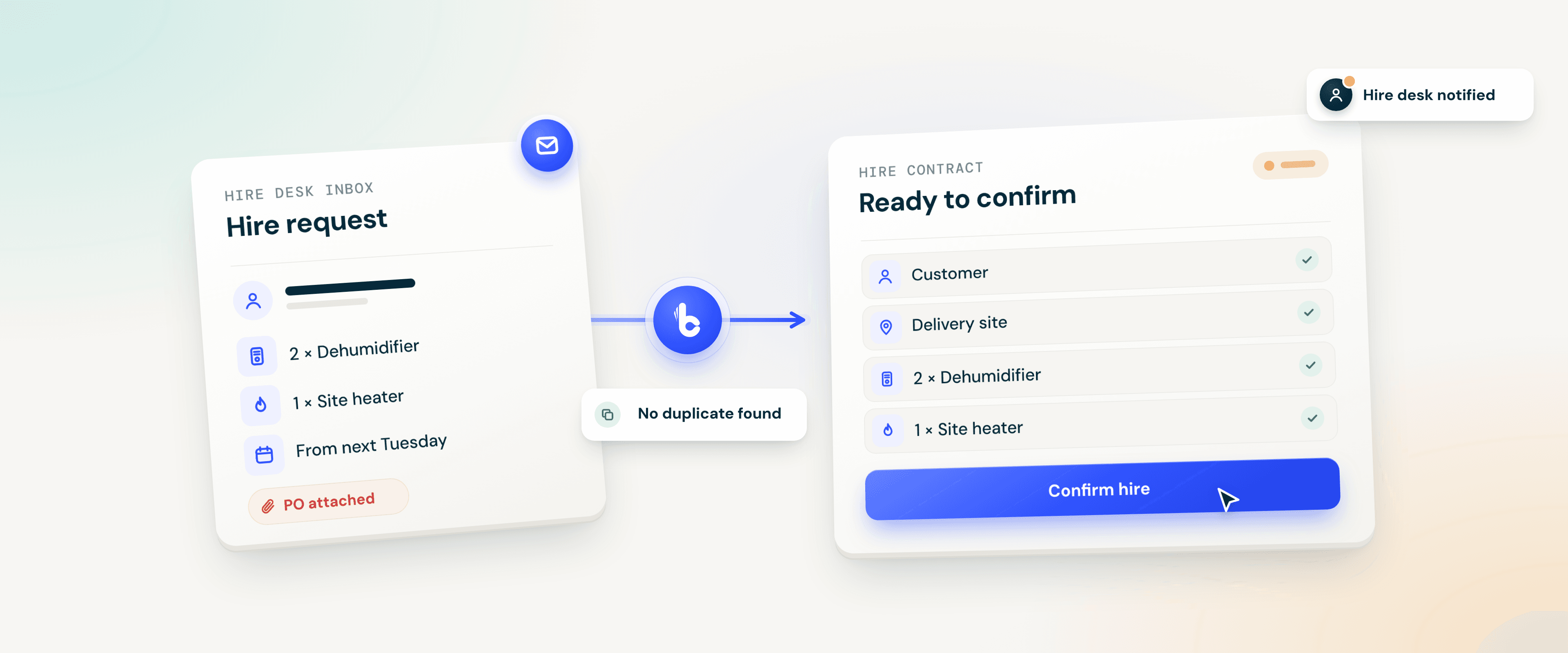
A site manager forwards an email asking for two dehumidifiers and a site heater from next Tuesday, with a purchase order attached. Build Concierge matches the customer, site and each item, finds no unconfirmed contract with that order number, and creates the contract with the dates, order number and delivery address. The hire desk reviews it and confirms.
When your team takes over
No contract is created, and the request goes to your team with the relevant details, when:
- the customer can't be matched with confidence
- the delivery site isn't recognised
- an item can't be matched to a category, or the final check flags a line
- one of that customer's unconfirmed contracts already carries the same order number
For unmatched items, the email shows what was matched, what wasn't and the closest options, so your hire desk can finish the order quickly. You choose who receives these emails and the contract notifications.
Getting set up
You'll need access to a hire management system, with customer accounts, contacts and delivery sites held there, plus your equipment categories and any stock codes you use.
- Review sample requests. Your Concierge Support team looks at the requests you typically receive, attachments included.
- Connect and map. We connect your hire management system, and set up matching against your equipment categories and stock codes.
- Route requests and choose recipients. Hire requests are copied or forwarded to your Build Concierge inbox, and you decide who receives notifications and exceptions.
- Test on real requests. We run real requests through, check the contracts with your hire desk, then go live.
Questions hire desks ask
Before a contract is created, the order number is checked against that customer's unconfirmed contracts. If one matches, no new contract is created and your hire desk is told, so an order that gets chased isn't raised twice.
Yes. It reads PDF purchase orders and the text inside images and screenshots, such as a product page from a hire website.
Items are matched to your equipment categories from the wording of the request. Stock codes help where they're supplied, but they aren't required.
If they quote their account number, that can be used to find the account. If the customer can't be identified, the request comes to your team.
Yes. Each item is matched separately, and the summary email shows how each one was matched.
Already a Build Concierge customer? Your Concierge Support team can talk you through setting this up.
More from the knowledge centre
Answer out-of-hours calls & alert the on-call engineer automatically
When an emergency call comes in overnight, Concierge Receptionist answers it, captures the details and raises the job. The on-call engineer is then called, texted or both, with everything they need to set off.

Automatically keep company records up to date in your systems
Build Concierge uses your Handshaik account to fill in missing company details for customers and prospects, including registered addresses and company numbers. It can also add figures from their latest filed accounts. Your team has the information to hand in your existing systems, without having to look it up manually.

Turn SOR codes on job cards into priced invoice lines automatically
Your engineers record the schedule of rates (SOR) codes they used. Build Concierge adds each one to the job as a priced line from your own price list and raises the invoice, ready for your team.

Check every job card against its charges before invoicing
Build Concierge reads each completed job card, compares the materials used with the job's charges, and flags any gaps before the invoice goes out.

Catch certificate errors while the visit is still fresh
When an engineer submits a completed job card, Build Concierge checks the certificate details against the rules you've agreed for that type of work. It records the findings on the job and tells your team what needs a closer look.

Get alerts when purchase order lines change on invoiced jobs
When someone updates a purchase order (PO) line, Build Concierge checks whether the job it belongs to has already been invoiced. If it has, the people you choose receive an alert showing what changed, who changed it and links to the job and the PO. Your team can review the change while it's recent, rather than coming across it at month-end.

Answer out-of-hours calls & alert the on-call engineer automatically
When an emergency call comes in overnight, Concierge Receptionist answers it, captures the details and raises the job. The on-call engineer is then called, texted or both, with everything they need to set off.
Automatically keep company records up to date in your systems
Build Concierge uses your Handshaik account to fill in missing company details for customers and prospects, including registered addresses and company numbers. It can also add figures from their latest filed accounts. Your team has the information to hand in your existing systems, without having to look it up manually.
Turn SOR codes on job cards into priced invoice lines automatically
Your engineers record the schedule of rates (SOR) codes they used. Build Concierge adds each one to the job as a priced line from your own price list and raises the invoice, ready for your team.
Check every job card against its charges before invoicing
Build Concierge reads each completed job card, compares the materials used with the job's charges, and flags any gaps before the invoice goes out.
Catch certificate errors while the visit is still fresh
When an engineer submits a completed job card, Build Concierge checks the certificate details against the rules you've agreed for that type of work. It records the findings on the job and tells your team what needs a closer look.
Get alerts when purchase order lines change on invoiced jobs
When someone updates a purchase order (PO) line, Build Concierge checks whether the job it belongs to has already been invoiced. If it has, the people you choose receive an alert showing what changed, who changed it and links to the job and the PO. Your team can review the change while it's recent, rather than coming across it at month-end.
Answer out-of-hours calls & alert the on-call engineer automatically
When an emergency call comes in overnight, Concierge Receptionist answers it, captures the details and raises the job. The on-call engineer is then called, texted or both, with everything they need to set off.
Automatically keep company records up to date in your systems
Build Concierge uses your Handshaik account to fill in missing company details for customers and prospects, including registered addresses and company numbers. It can also add figures from their latest filed accounts. Your team has the information to hand in your existing systems, without having to look it up manually.
Turn SOR codes on job cards into priced invoice lines automatically
Your engineers record the schedule of rates (SOR) codes they used. Build Concierge adds each one to the job as a priced line from your own price list and raises the invoice, ready for your team.
Check every job card against its charges before invoicing
Build Concierge reads each completed job card, compares the materials used with the job's charges, and flags any gaps before the invoice goes out.
Catch certificate errors while the visit is still fresh
When an engineer submits a completed job card, Build Concierge checks the certificate details against the rules you've agreed for that type of work. It records the findings on the job and tells your team what needs a closer look.
Get alerts when purchase order lines change on invoiced jobs
When someone updates a purchase order (PO) line, Build Concierge checks whether the job it belongs to has already been invoiced. If it has, the people you choose receive an alert showing what changed, who changed it and links to the job and the PO. Your team can review the change while it's recent, rather than coming across it at month-end.